AI Communications









Running a small business means wearing every hat: marketing, sales, customer service, accounting, and whatever else comes up before lunch. It also means juggling a handful of different tools just to keep the lights on, and losing hours to work that has nothing to do with why you started the business in the first place.
RingCentral and Anthropic teamed up to change that by bringing the power of conversation data into Claude for Small Business. Now, the RingEX Plugin for Claude is available in the Claude directory, giving small business owners a direct way to bring context from their RingCentral voice, SMS and Chat conversations into Claude, where it can work alongside the other tools they use to run their business.
With the RingEX Plugin for Claude, small business owners can gain a clear pulse on their business, spend less time digging for answers, take action, and scale faster. For example, owners can ask a direct question within Claude like ‘Which customers still need a follow-up?’ and Claude will pull the information and draft and send a follow-up message, closing the loop with a single prompt.
In the RingCentral Meets Claude webinar, now available on demand, Mike Stowe of RingCentral and Lina Ochman of Anthropic showed these workflows in action. This guide walks through the same setup step by step, so you can follow along and put RingEX and Claude to work for your business.
Watch now: RingCentral Meets Claude
Watch this on-demand recording to see exactly how it works, and how businesses are already putting it to work.
As Akshay Srivastava, EVP & GM of SMB at RingCentral, puts it: “Small business owners spend too much time digging through every customer call or message to figure out what needs their attention next. RingCentral gives owners the ability to easily access and act on the conversations flowing through their business, right within Claude where they’re already working. The result is an owner who can follow up faster, catch a problem earlier, and stay focused on their customers.”
It’s a shift industry analysts are already tracking. According to Shelly Kramer, Founder & Principal Analyst, Kramer & Company: “Most of the AI built for small business so far has been trained on structured data, like invoices, contacts, and deal stages. RingCentral is bringing something different into Claude for Small Business: the actual conversations happening between a business and its customers. For a team too small to have someone reviewing every call or message, that’s not a nice-to-have, it’s context they’ve simply never had access to before.”
For a look at what that means in practice, take Captivo Labs. CTO and Co-Founder Giv Parvaneh is already seeing the time savings firsthand: “As CTO and co-founder of a small, distributed team, I used to burn 15 minutes every morning digging through 100+ messages across chats just to find what actually applied to me. Using the RingCentral connector in Claude, I now get a scheduled summary of only my mentions and action items, cutting that to seconds, which is a 98% time savings, every single day.”
Get started with RingEX plugin for Claude
Before you start, make sure you have:
- Claude Desktop app, signed in to your Claude account
- RingCentral RingEX account, which you’ll sign in to during setup
- Optional: a CRM account such as HubSpot, monday.com, Salesforce or Zoho CRM
- Optional: an email connector if you want Claude to send follow-up emails
Then follow the steps below to install the RingCentral plugin and complete your setup.
1. Install the RingCentral plugin
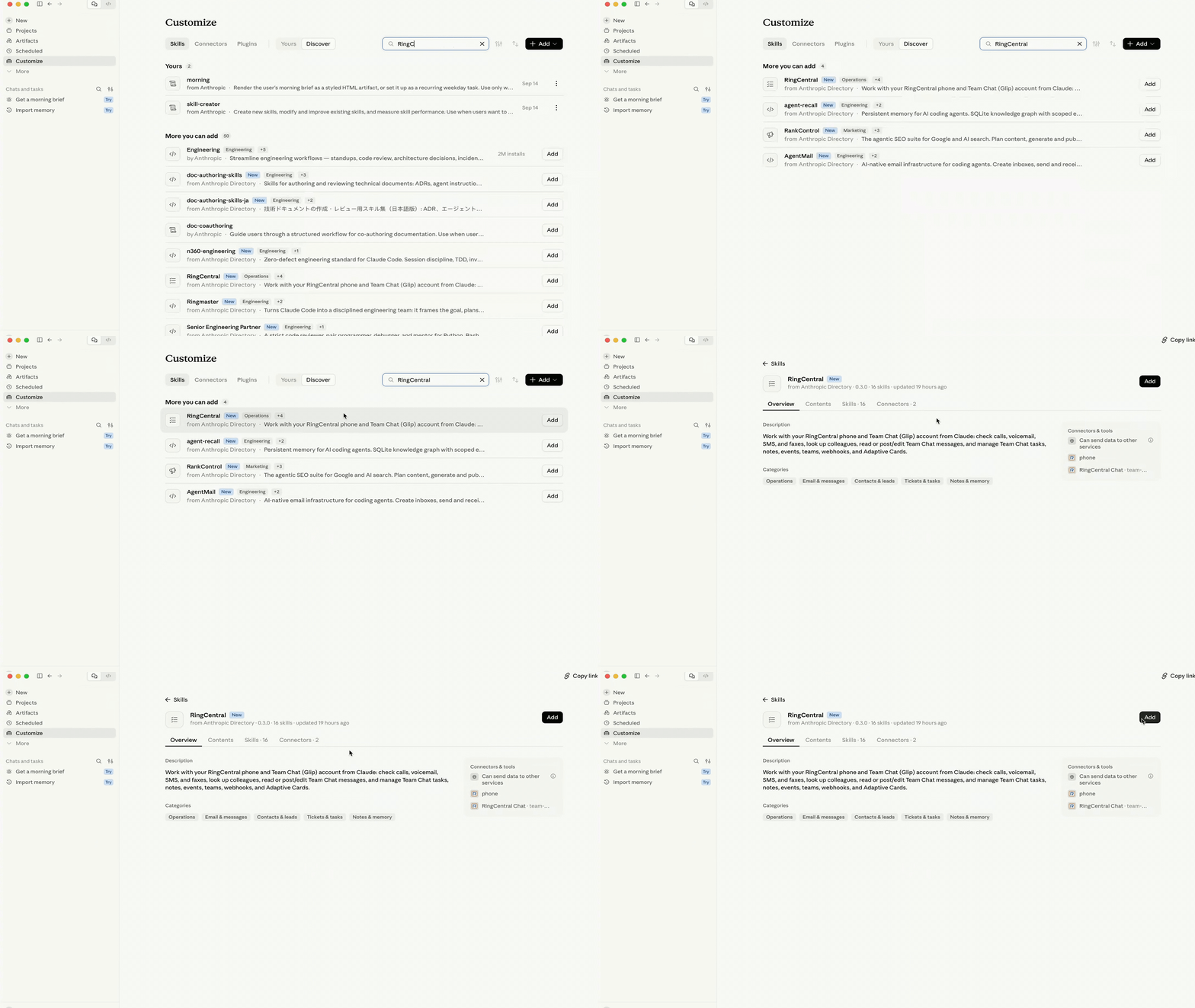
In Claude Desktop, open Customize. You’ll see three tabs: Skills, Connectors and Plugins.
Select Discover, then enter “ringcentral” in the search box.
Find RingCentral labeled from Anthropic Directory, and click Add.
Once the plugin page opens, confirm that:
- The header reads RingCentral, from Anthropic Directory
- The toggle at the top right is blue and turned on
- You see four tabs: Overview, Contents, Skills · Connectors
2. Connect RingEX Phone and RingCentral Chat
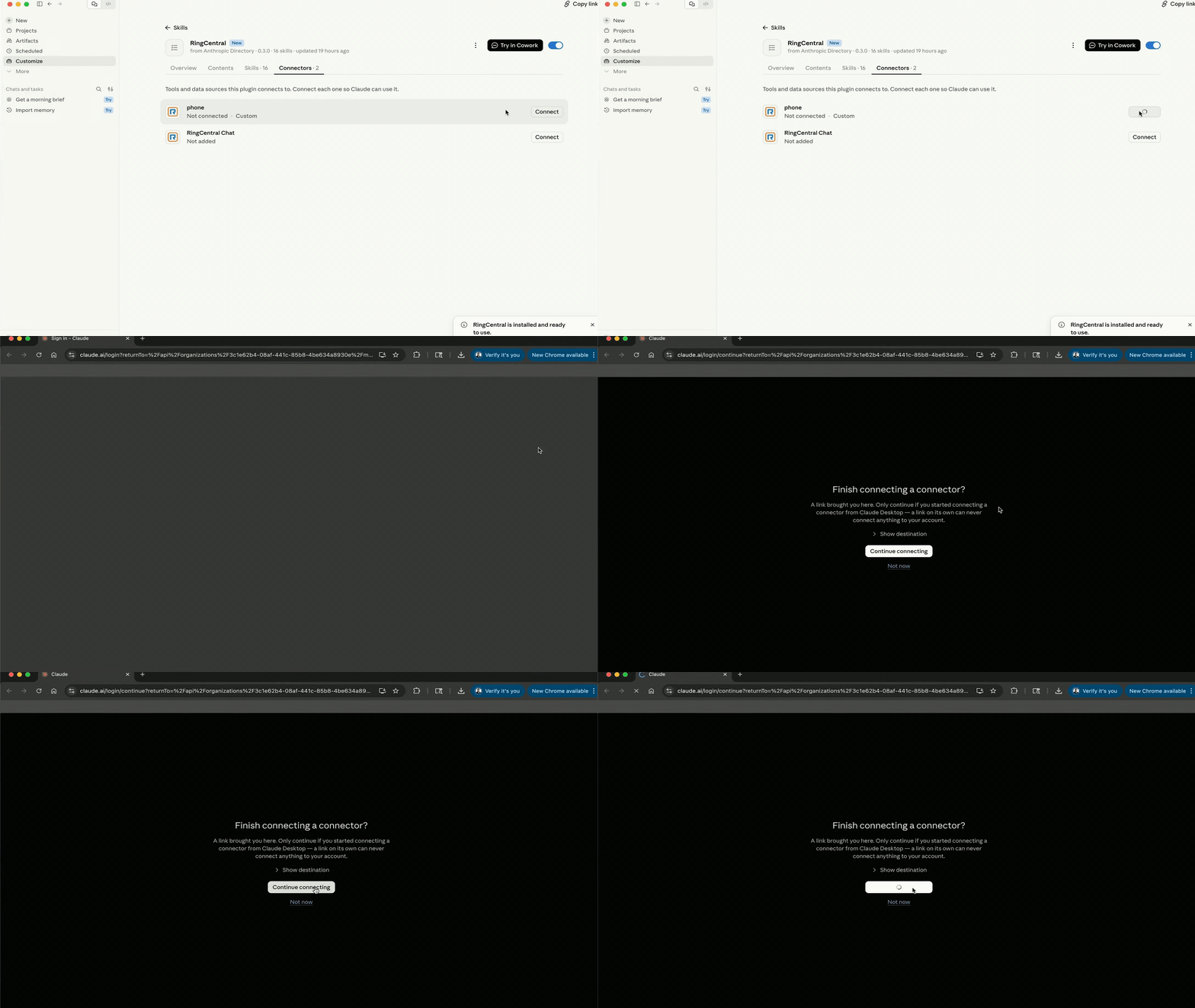
From the RingCentral plugin page, open Connectors · tab.
Select Connect next to RingEX Phone, then choose Continue connecting. Sign in to your RingCentral account if prompted, review the access request and select Authorize.
Repeat the same process for RingCentral Chat: select Connect, choose Continue connecting, then Authorize.
When setup is complete, both connectors should show as Connected.
3. Add Claude for Small Business
RingCentral customers using Claude can install the Small Business plugin in three simple steps:
- Open Claude and select Customize in the left sidebar.
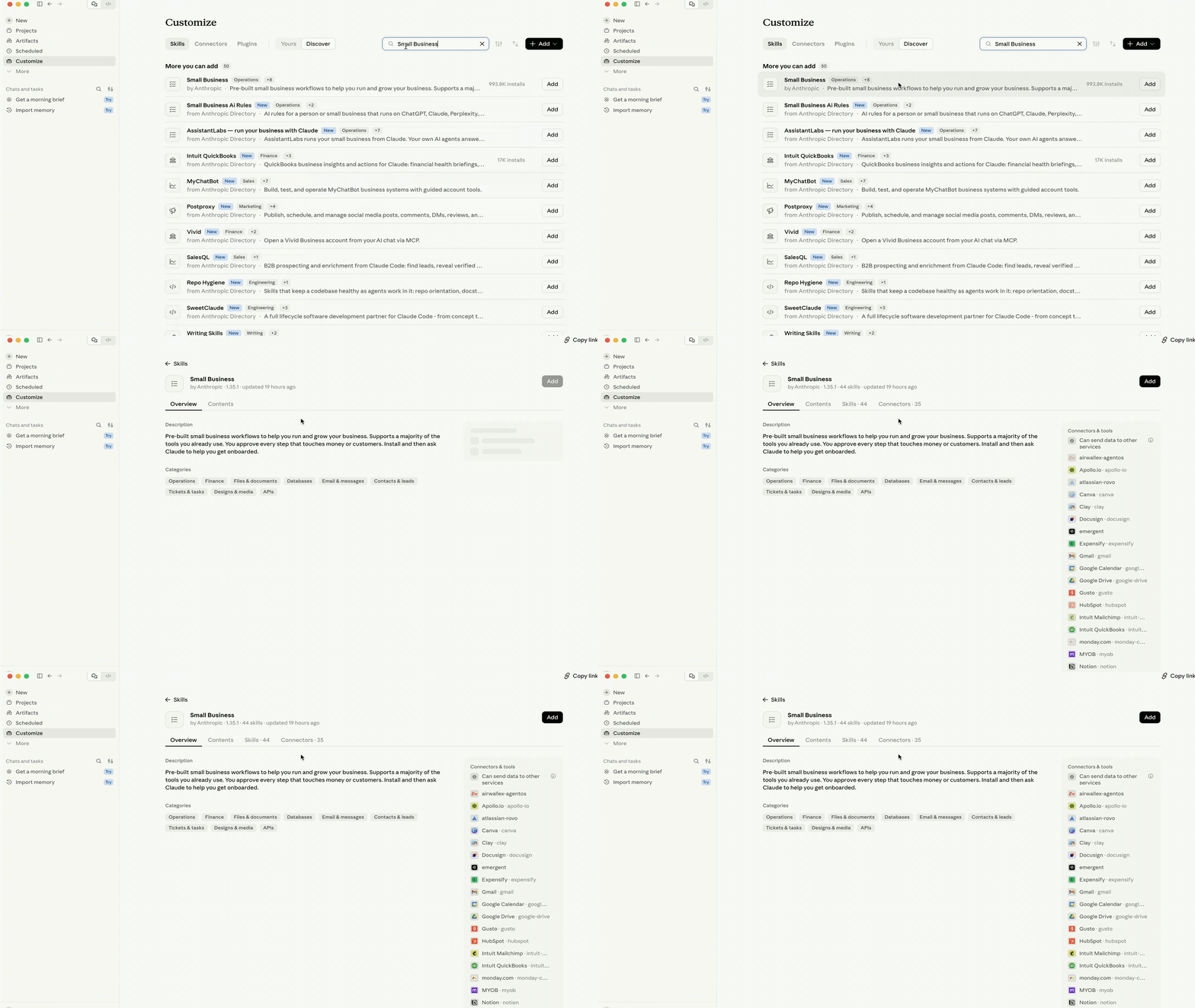
- Select the search icon and enter “small business.”
- Find Small Business and select Add .
Once the Small Business plugin is installed, make sure the toggle is on and that the Overview, Contents, Skills and Connectors tabs are visible.
4. Onboard Claude for your business
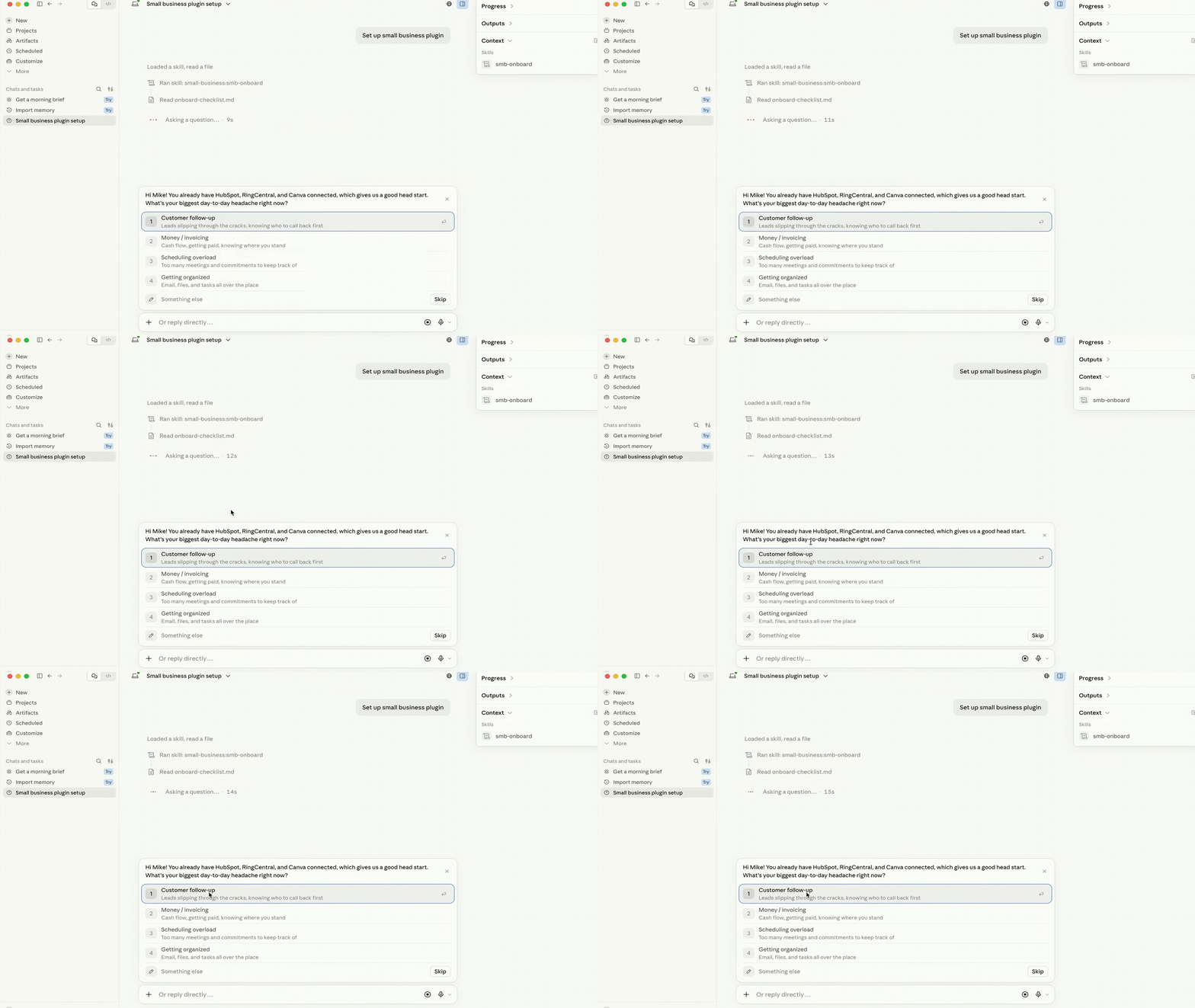
Once Claude for Small Business is installed, type: “/smb-onboard.”
Claude will check what’s already connected, then ask about your biggest day-to-day challenges, such as managing money, following up with customers, scheduling, staying organized, hiring or selling online.
Choose one or more areas, or describe what you need in your own words. For example:
I need help following up with customers and staying organized.
Claude will use your answer to help determine which tools to connect first and run a quick example using your data.
5. Connect the other tools you want to use
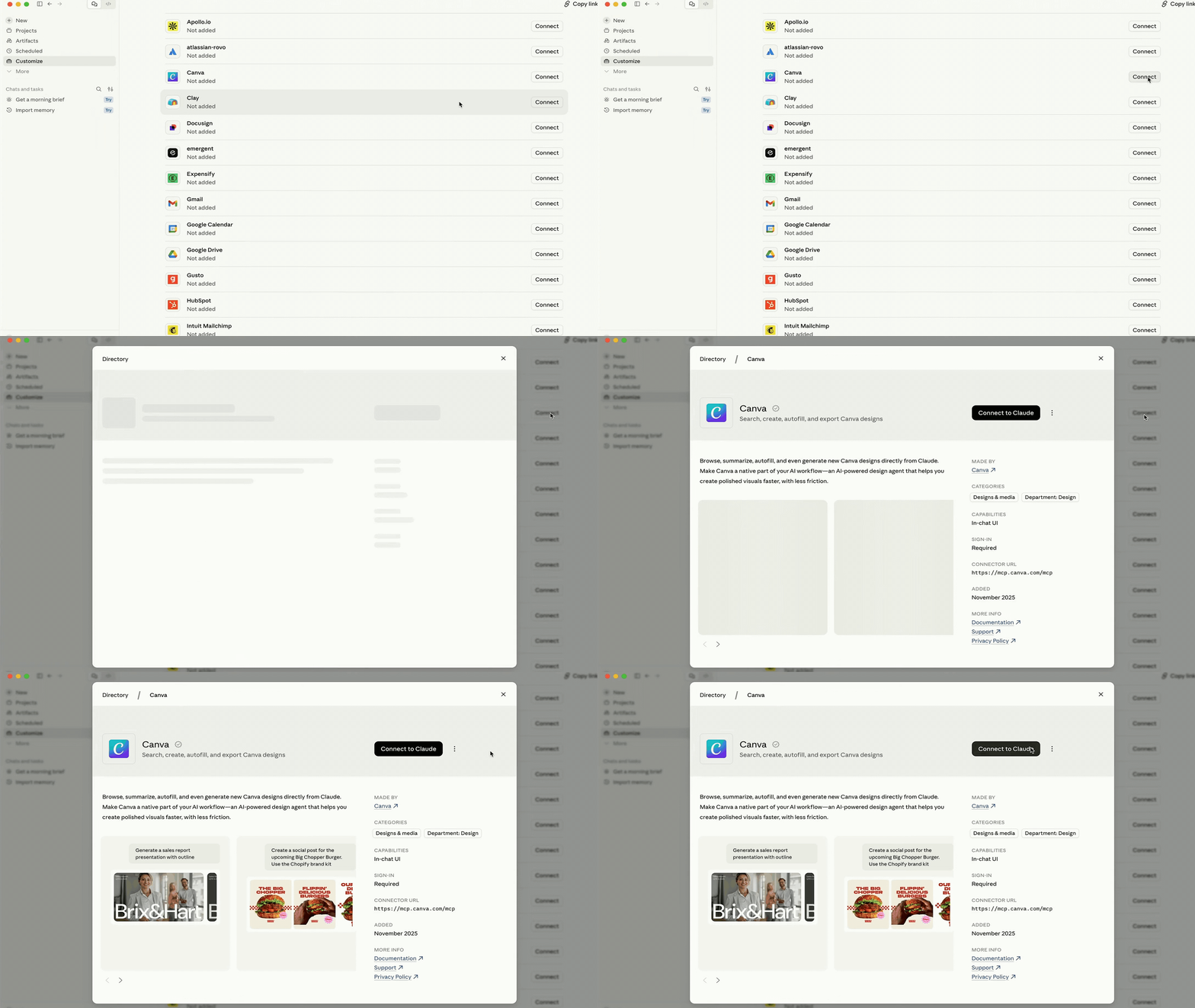
The RingEX Plugin for Claude brings RingCentral conversation context into Claude, where it can work alongside other connected business tools such as HubSpot, Google, QuickBooks, DocuSign and Canva to support the next task.
To add additional plugins or connectors, go to Customize, search for the tool you want to use, click Add or Connect, and follow the sign-in and permission steps.
Doing even more in Claude with RingCentral
Claude for Small Business isn’t limited to pulling information out of RingCentral. It connects data across your tools and can act on it, putting your business communications front and center. Here’s what that looks like in practice.
1. Start the day with the customers who need your attention first
For a small business owner, one of the hardest parts of the day can be knowing where to begin. Customer messages may be spread across chat, SMS, missed calls and voicemail, and sorting through each channel takes time before you’ve even begun responding.
That can make it easy for an urgent request to sit too long or for an important follow-up to get buried.
Instead of checking each channel one by one, ask:
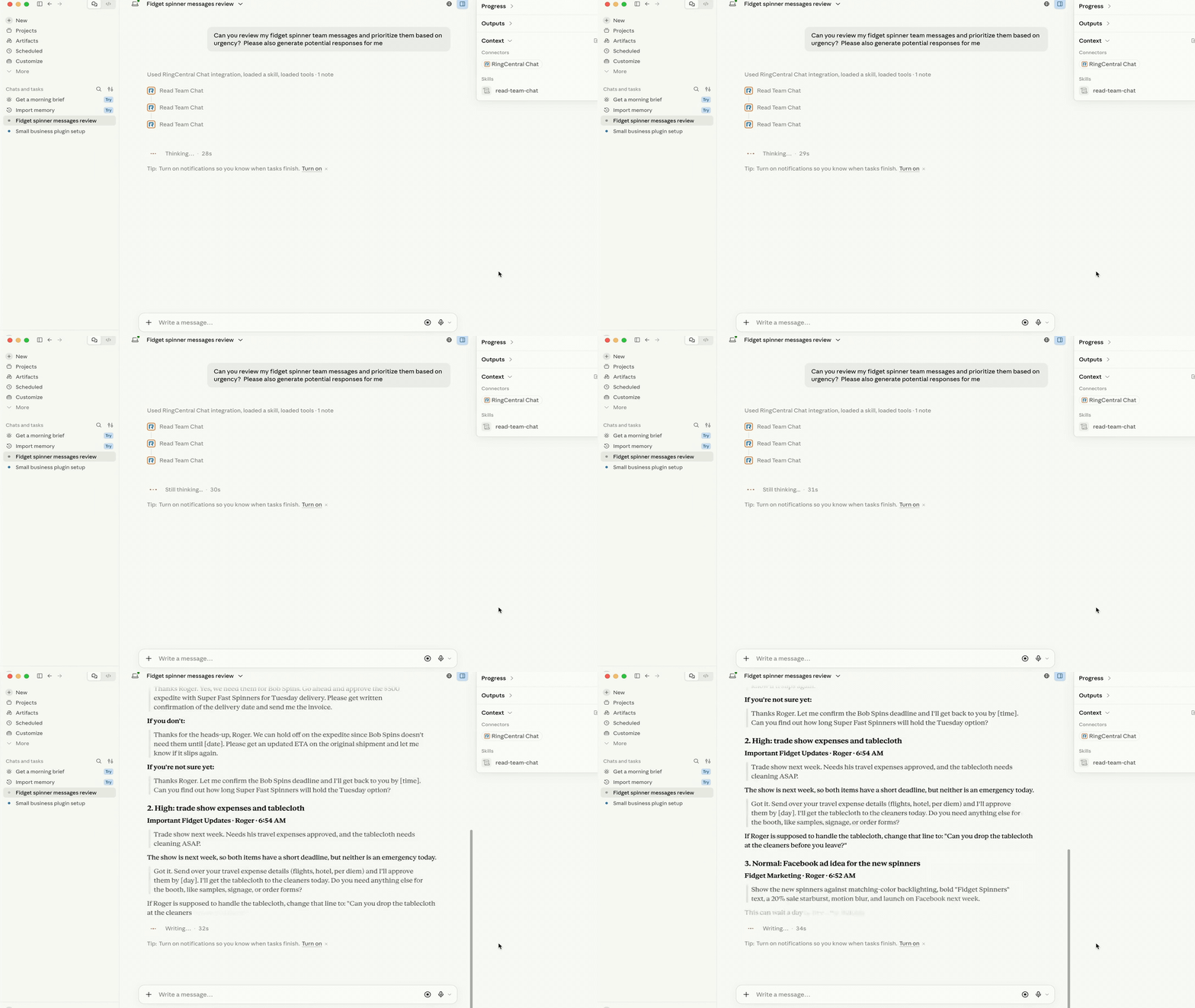
Check my RingCentral Chat messages, SMS, voicemails, and missed calls from the last 24 hours. Tell me which customers need a response most urgently and why, summarize what I missed, and draft a suggested reply for each. Show me the drafts and wait for my approval before sending anything.
Claude can review those communications, prioritize what needs attention and prepare suggested responses or callback talking points, so you can spend less time sorting through messages and more time responding to customers.
2. Turn customer chats into CRM-ready replies
A customer messages asking about an order. Normally, you’d stop what you’re doing, check the chat, pull up tickets and emails, or ping a coworker for a status update.
With Claude, just type:
Review this customer’s message. What’s the status of her order? Give me a summary and draft a response back to her. Ask me if I approve the message and notes, and if I do, log them into HubSpot.
Claude reads the RingCentral chat, checks HubSpot for her order and loyalty status, drafts a reply that reflects both, and logs a note on her contact record, all before you approve and send.
3. Give invoice follow-ups the context from your team chat
Small businesses run on trust and personal relationships. Sometimes that means giving a customer an extension on an invoice. Too often, that exception lives only in someone’s memory or a quick team message. Claude for Small Business lets you manage invoicing without losing that context:
Find overdue invoices. If we made an exception, skip those but summarize it for me. For past-due customers, craft language that’s compassionate but reminds them their invoice is overdue. Base the tone on how overdue each invoice is.
Claude checks your RingCentral team chat for any exceptions you’ve already agreed to, ranks the rest of your overdue invoices, and drafts reminders, automatically leaving out the customers you’ve already taken care of.
4. Turn marketing brainstorms into assets
Marketing is hard for a small business. Your team comes up with plenty of good ideas, but even a rough proof of concept usually means building the messaging yourself and handing it off to a designer or agency just to see if it’s worth pursuing.
With Claude for Small Business, you can turn a RingCentral team conversation into a marketing kit in minutes using Google and Canva. Try a prompt like:
Read our messages about [marketing idea] in [RingCentral team name]. Create a marketing plan and initial marketing assets using Google and Canva. Give me three different creative styles to explore.
Claude reads the RingCentral thread, pulls out the idea your team landed on, builds a marketing plan, and drafts the designs in Canva for you to review.
Find more RingCentral connectors for Claude
Claude for Small Business gives you a ready-to-use set of tools out of the box, and there’s more where that came from. Visit the RingCentral App Gallery for new connectors and capabilities as they’re added.
Watch the RingCentral Meets Claude webinar on demand to see the setup and workflows in action.
For additional guidance on navigating the plugins and getting support, visit the RingCentral Community at community.ringcentral.com.
Updated Oct 09, 2026